Configure a product
A configuration always starts by choosing one of the three products. The product decides which rules you can set. You then build it in the Configure tab.
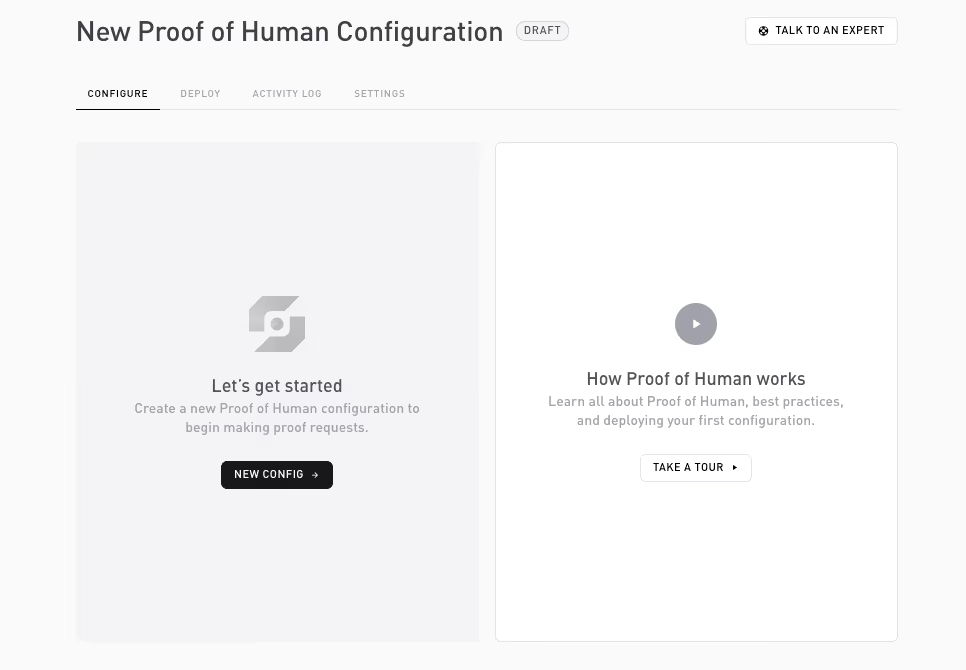
Pick a product
| Product | What the user proves | Rules beyond Security level + OFAC |
|---|---|---|
| Pre KYC | Holds a genuine document, optionally meets an age floor, comes from an allowed country, clears OFAC | Minimum age, excluded countries, plus Additional data reveals |
| Age Verification | Meets an age threshold | Minimum age |
| Proof of Human | Is a unique, real human | None extra |
Every product also has a Security level and an OFAC check (covered below).
The Configure tab
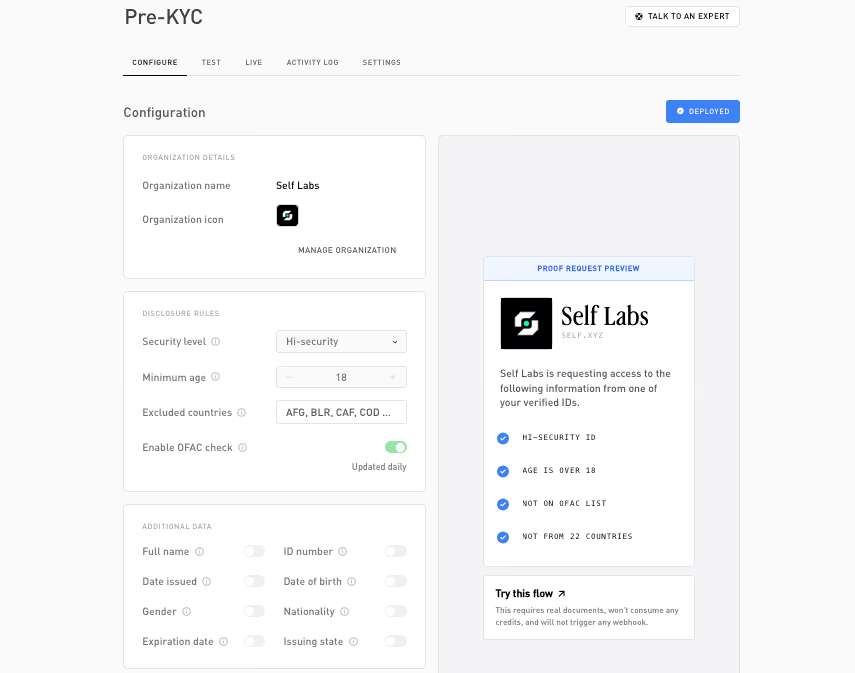
The Configure tab has three cards on the left. On the right, a live proof-request preview shows what the user will see, and a credit estimate shows what each verification will cost.
Configuration details
- Configuration name: a label for this config.
- Application icon: the icon shown on the proof request. Managed under Settings → General.
Disclosure rules
The predicates the user must satisfy. The user proves each one without revealing the underlying value.
- Security level (all products): Standard verifies the document is genuine; Hi-security also verifies the user physically scanned the document’s chip.
- OFAC check (all products, on by default): match against the US Treasury OFAC sanctions list. Self keeps the list updated daily, and only the pass or fail result is disclosed.
- Minimum age (Pre KYC, Age Verification): the age threshold. Only the pass or fail result is disclosed, never the date of birth.
- Excluded countries (Pre KYC): documents issued by a country on this list fail. Only the pass or fail result is disclosed, not the user’s country. ISO 3166-1 alpha-3 codes.
Additional data (Pre KYC)
For Pre KYC, beyond the pass or fail rules, you can ask the user to disclose specific document fields. Each is an explicit reveal, off by default, request only what you need:
Full name, ID number, Date issued, Date of birth, Gender, Nationality, Expiration date, Issuing state.
Save and publish
Saving stores your changes. To take the configuration live, publish it; the dashboard validates the configuration first. Once published, the Test and Live tabs show its flowId and SDK snippets, and you generate API keys under Developer → API keys.
A product keeps one active configuration at a time. Once published, a configuration is immutable, you can’t edit it. To change anything, archive it and create a new one. In-flight sessions keep using the version they were created against, so archiving never breaks an open session.
Related
- Disclosures: what each rule and reveal proves.
- Supported documents: which documents work where.
- API keys: generate the keys your backend uses.